 Context Goblin
The pipeline
Same five steps every time, no matter how a review starts.
- Architecture
- Security
- Logic
- Tests
- Starting point is the same code path whether it's the dashboard, a GitHub comment, or your own MCP call.
- Each step runs in order. If one fails (say the code index is down), the review keeps going. That step just shows up as an error instead of blocking the rest.
Context: what the agents see
Before any agent runs, one context document gets built from:
- The pull request's diff, metadata, commits and discussion
- Blast radius: the changed symbols, plus who calls them elsewhere in the codebase
- Cross-repo routes: calls between your indexed repositories that this diff touches
- Cross-repo relations: HTTP calls, queues and shared tables found by the Knowledge crawl (see below)
How blast radius gets built:
- The repo is indexed by codebase-memory-mcp, which builds a call graph of the codebase.
detect_changesfinds the symbols defined in the changed files.- A graph query finds their callers in other files: code a reviewer without that index would never think to open.
- It's rendered as a file tree: changed files at the root, downstream files below them grouped by the symbols they use.
Cross-repo awareness
- Static edges: found automatically while indexing. A route defined in one service and called from another shows up as an edge, filtered down to only the ones the diff actually touches.
- Crawled relations: the Knowledge crawl (see below) records what static analysis can't see on its own: HTTP calls, queue producers and consumers, shared tables. When a change touches one, that relation gets pulled into the review.
The review agents
- Each agent runs in its own isolated session. One agent never sees another's output.
- A coordinator reads all four sets of findings, drops duplicates, resolves disagreements, and writes the single review that gets published: the Review Overview, the inline comments, and the verdict.
- An admin can turn off any built-in agent or add a custom one, from Review Agents in Settings.
Three ways in, one engine
- Dashboard: paste a pull request URL and press Start review.
-
GitHub: comment
@contextgoblinon a pull request, or turn on automatic reviews for every pull request opened. -
Your own agent: call the
review_repositoryMCP tool.
All three take the same path from there:
- Check the repository is connected and enabled
- Reserve Review Credits
- Queue the job and run it on the same worker
Only where the result ends up differs: the dashboard, the pull request, or back to your own agent.
Connect your repositories
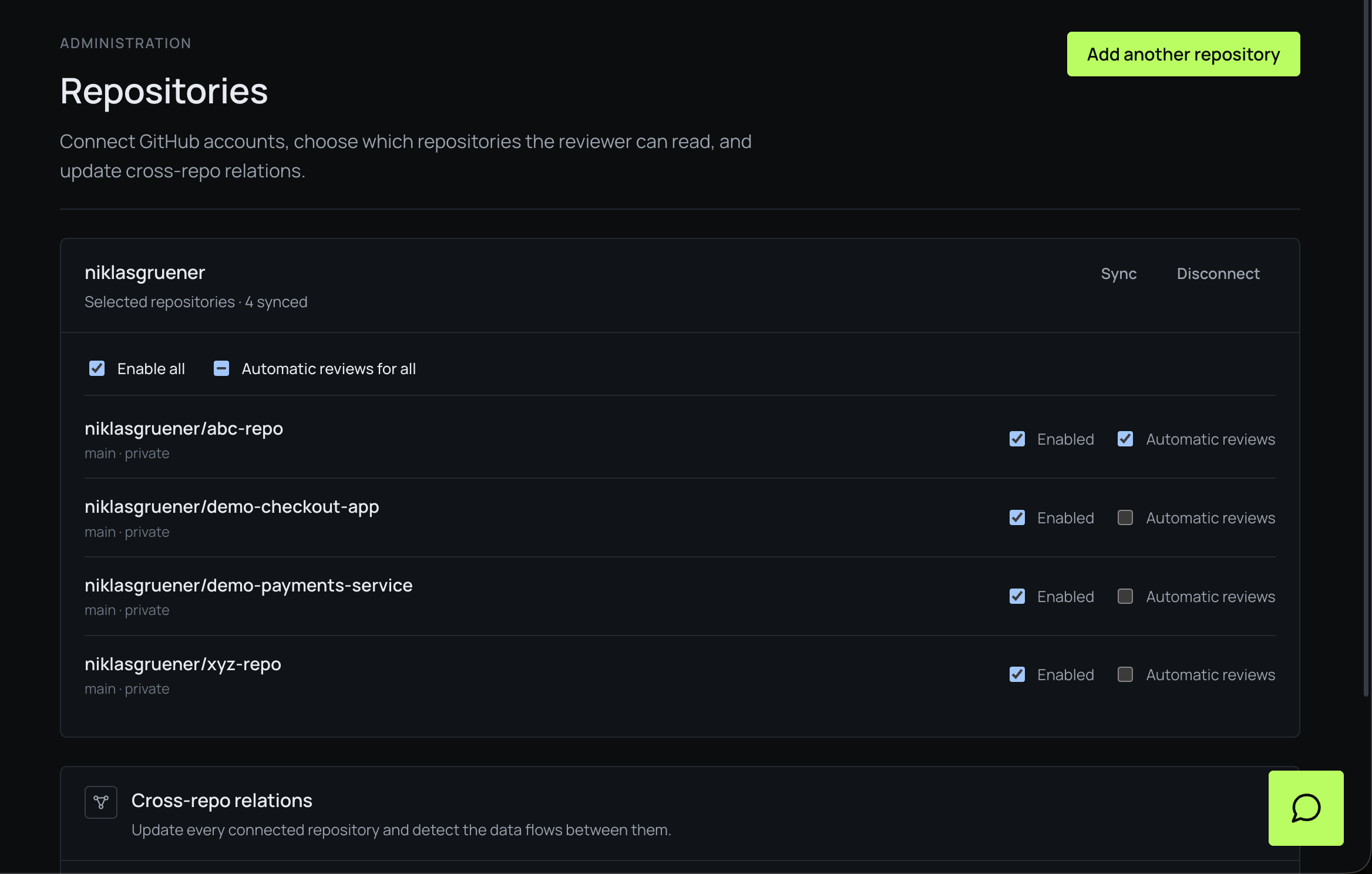
On Repositories, connect a GitHub account and pick which repositories the App may read. Sync pulls that selection in again after you change it on GitHub.
Each repository then has two independent switches:
- Enabled: the reviewer may read this repository at all. Nothing works until this is on.
- Automatic reviews: off by default. With it on, every pull request opened or reopened on that repository is reviewed without anyone asking.
The two checkboxes at the top apply the same change to every repository at once. This page is admin-only.
Ask for a review on a pull request
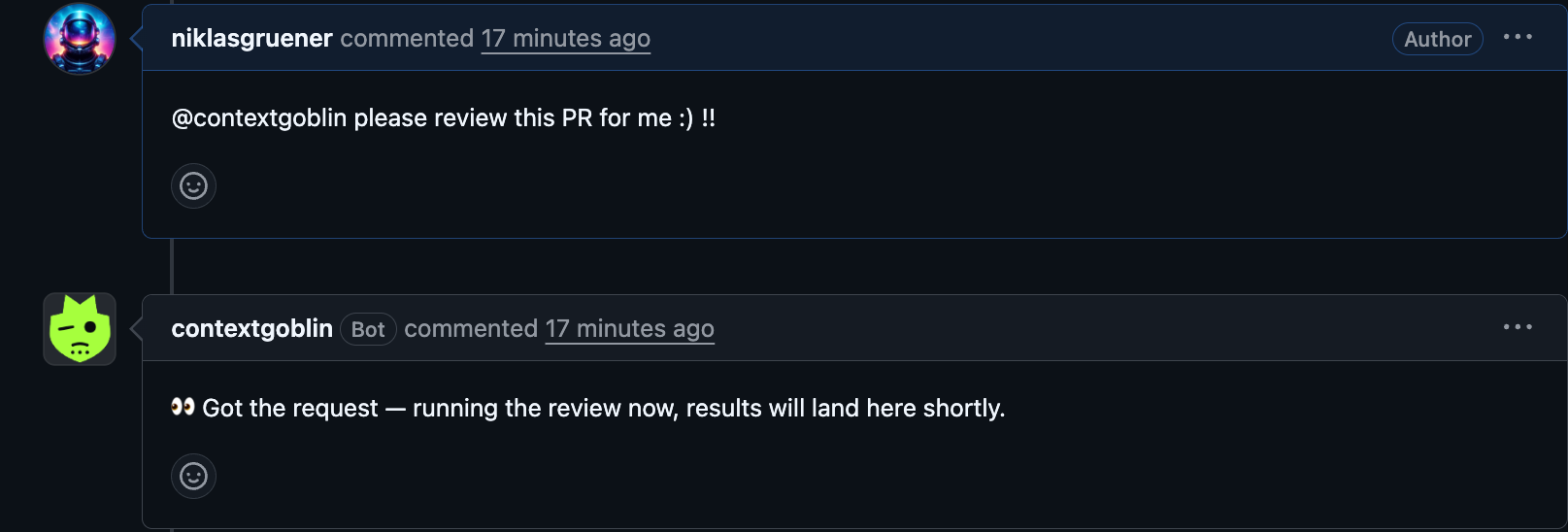
Comment @contextgoblin on any pull request in an
enabled repository and it reviews that pull request. This
works whether or not automatic reviews are on for the repository.
You get a short acknowledgement straight away, before the review starts. Only the repository's owners, members and collaborators can trigger a review this way.
What lands on the pull request
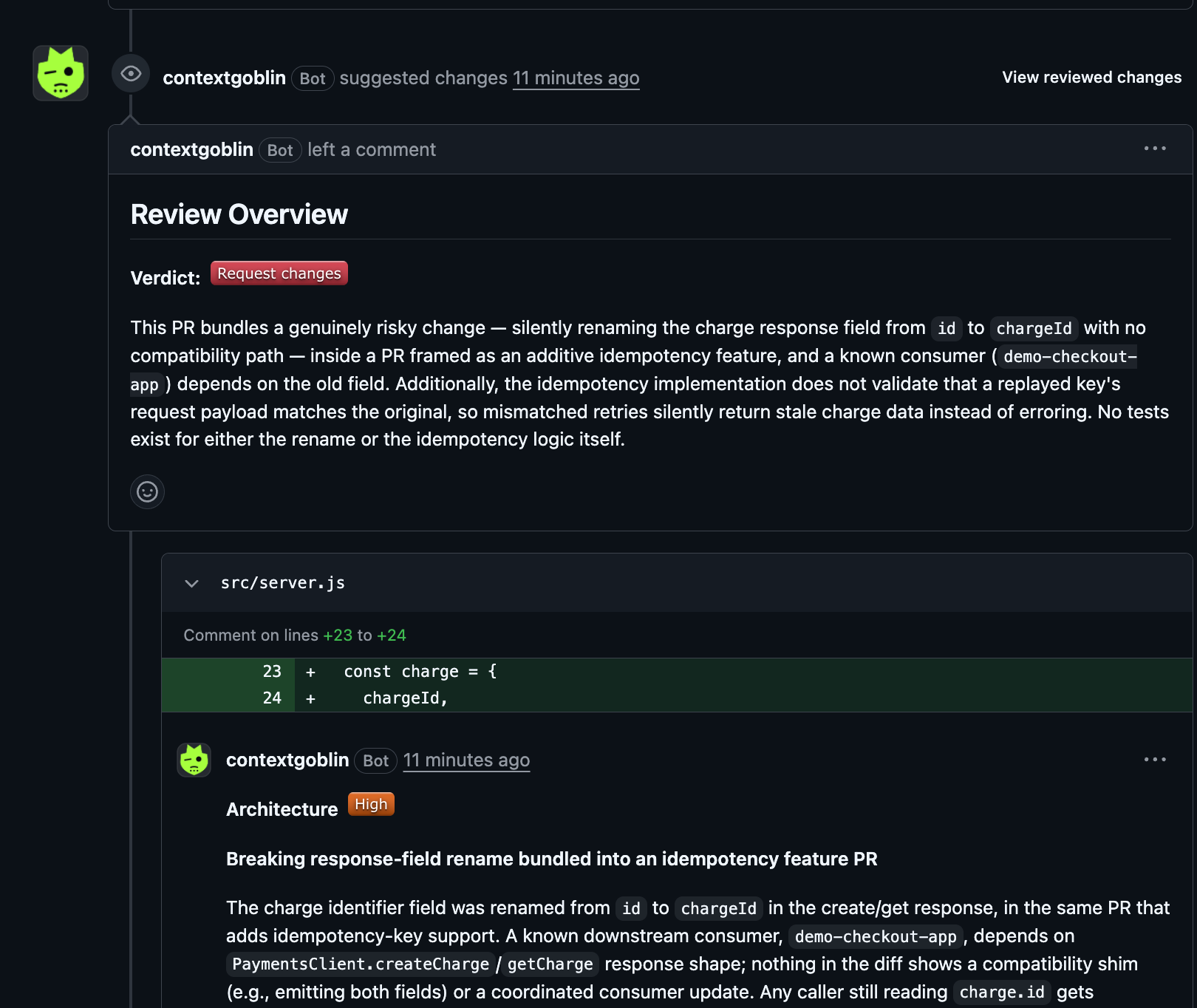
Automatic reviews and @contextgoblin mentions both post
their result into the pull request itself: a
Review Overview with a verdict and a summary, plus
inline comments on the exact changed lines. Every finding carries a
severity and its category: Architecture, Security, Logic or Tests.
The verdict is a real GitHub review state, not just text: Approve approves the pull request, Approve with comments leaves a non-blocking comment review, and Request changes requests changes. If you want that to actually block a merge, set up branch protection on the repository.
![GitHub showing one requested change from contextgoblin[bot] on the pull request](/tutorial/shots/04-pr-verdict.png)
Start a review from the dashboard
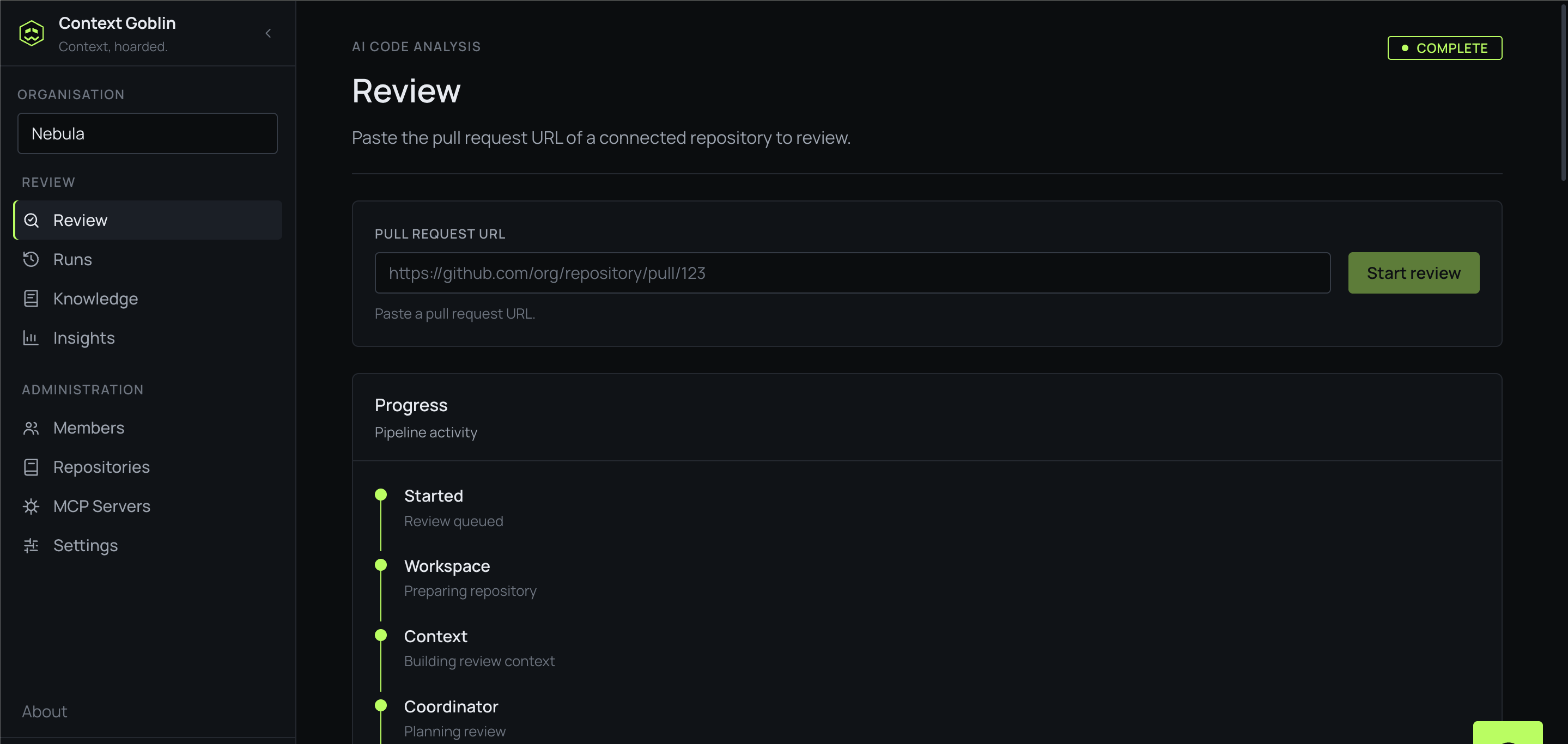
On Review, paste the URL of a pull request in a connected repository and press Start review. The result appears in the dashboard; it is not posted to GitHub.
Progress runs live while it works: it prepares a workspace, builds the context, plans the review, runs the four specialists (one each for architecture, security, logic and tests), then collects everything into one report.
Runs
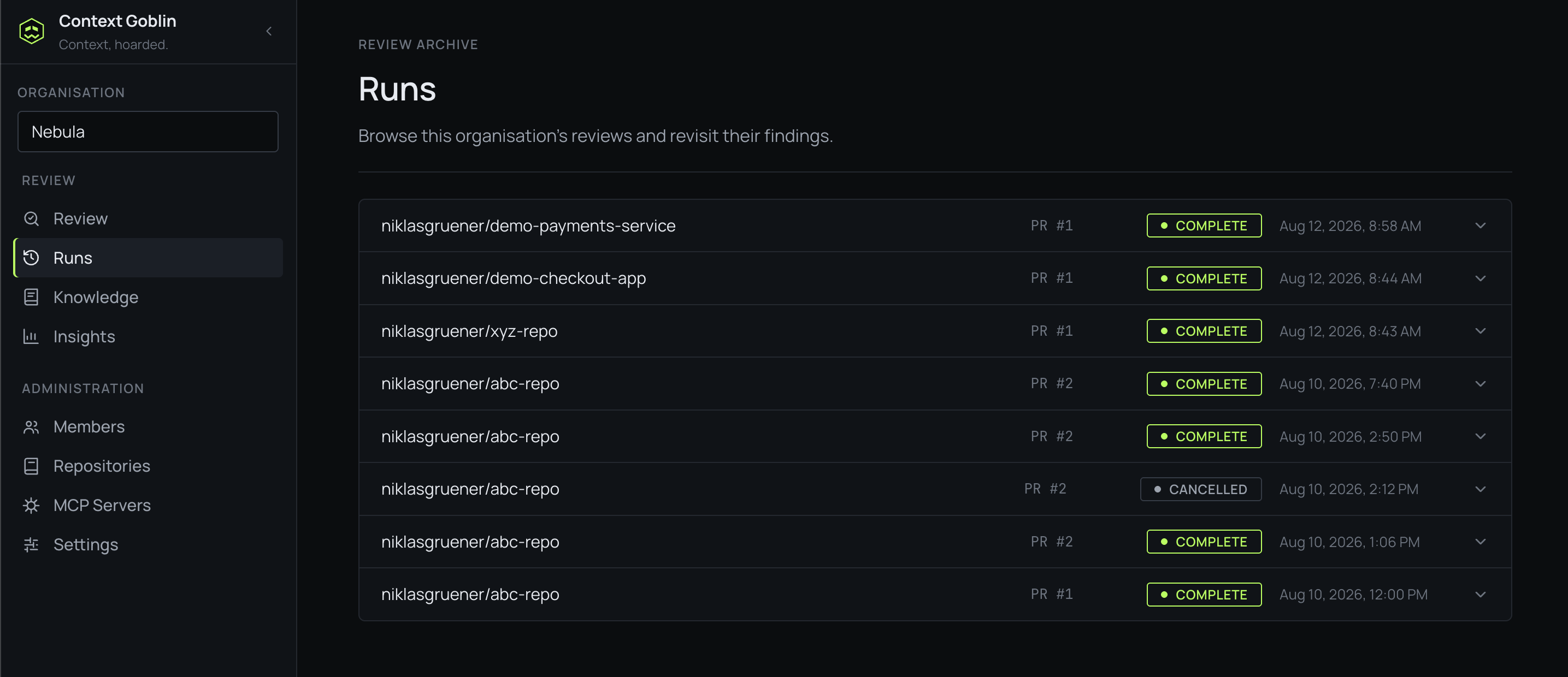
Runs is every review your organisation has done, newest first, however it was triggered. Expand a row to read that review's findings again.
Build the cross-repo map
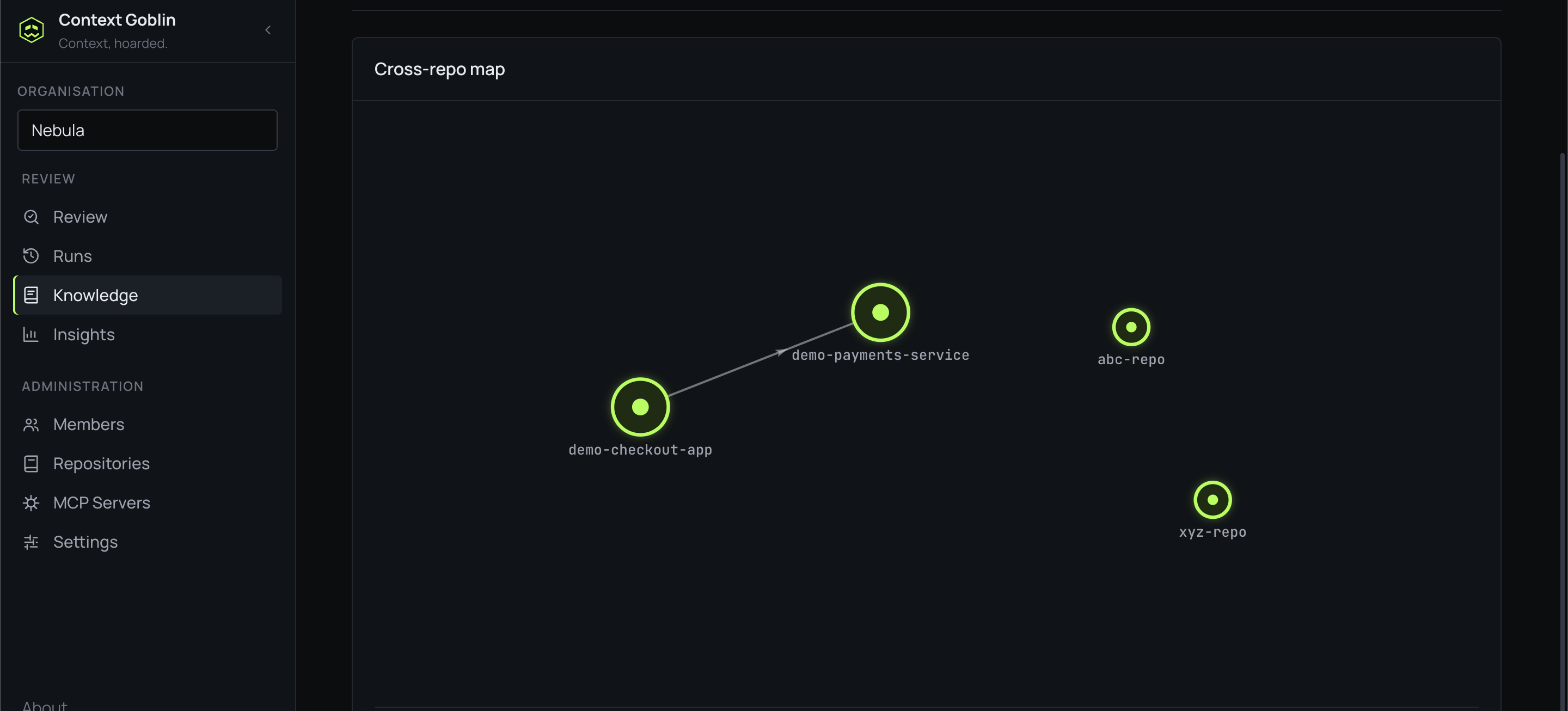
On Repositories, the Cross-repo relations card has a Find relations button. It crawls your enabled repositories and detects how they depend on each other: package dependencies, HTTP calls, queues, shared tables. It runs in the background, so you can keep starting reviews while it works.
The result is the map on Knowledge, where nodes are repositories and edges are the relations found between them. From then on, the parts of that map touching a change are fed into reviews as extra context. Re-run it after a bigger refactor to keep it current.
Connect your own MCP servers
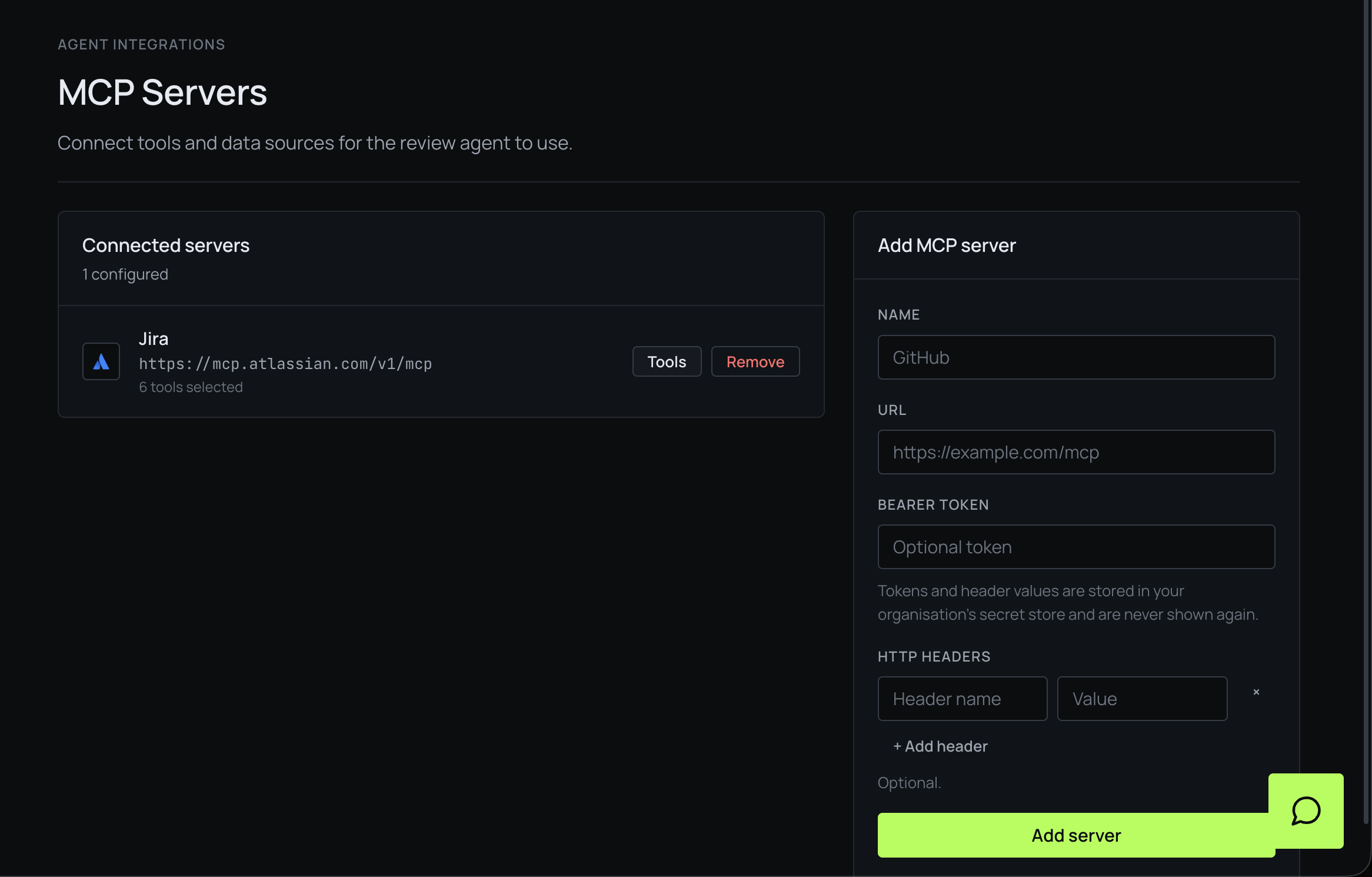
The best reviewers know things that aren't in the code. On MCP Servers you can connect Jira, Confluence, Notion, your own documentation, or anything else that speaks MCP. Give it a name, a URL and, if it needs one, a bearer token or HTTP headers.
Once connected, press Tools to choose which of that server's tools the review agents may call. They then read that context during a review, so the question stops being "is this code correct" and becomes "does this change do what the ticket asked for".
Tokens and header values go into your organisation's secret store and are never shown again.
Insights
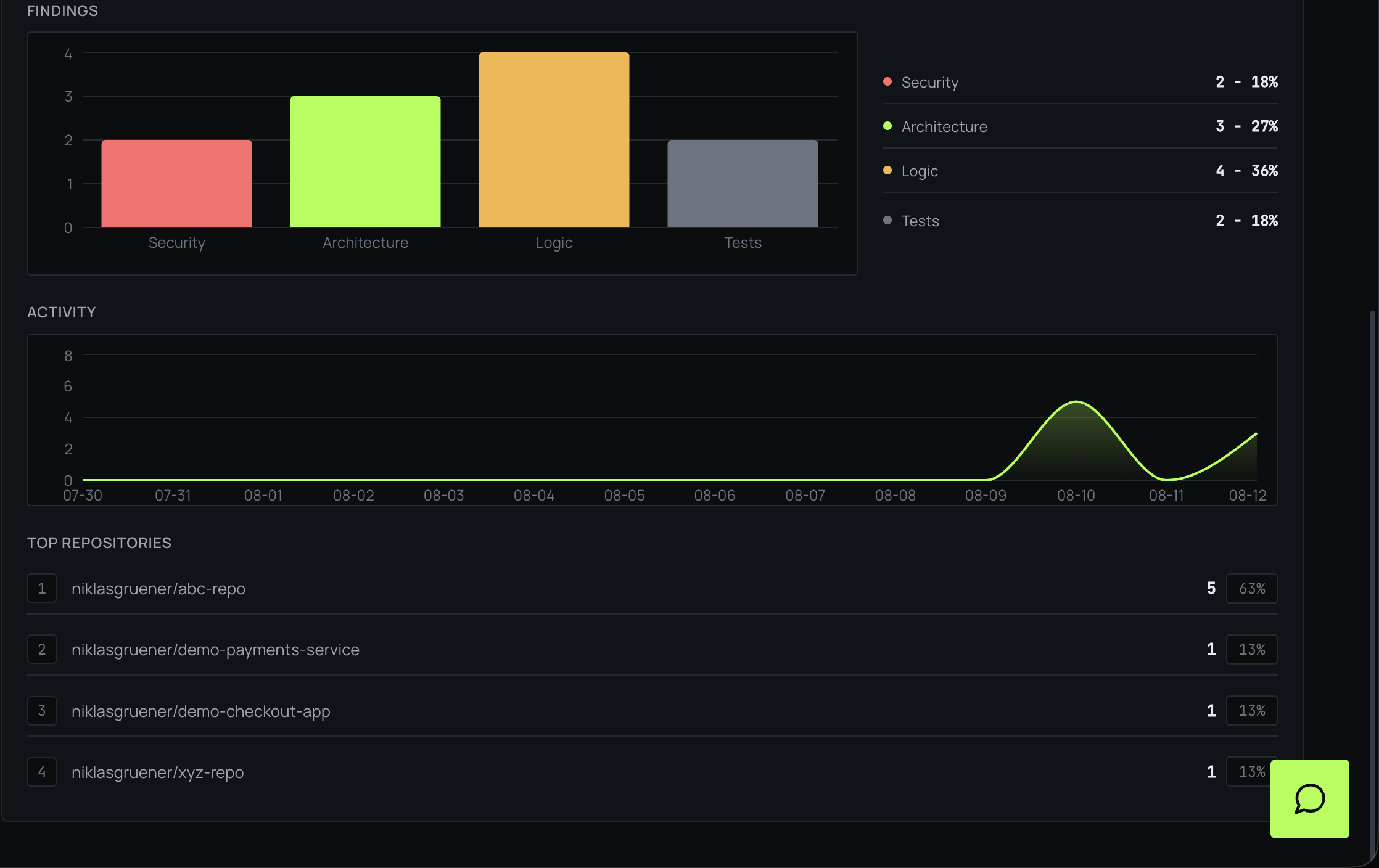
Insights aggregates every review your organisation has run: how many there were, how many completed or failed, and the average turnaround.
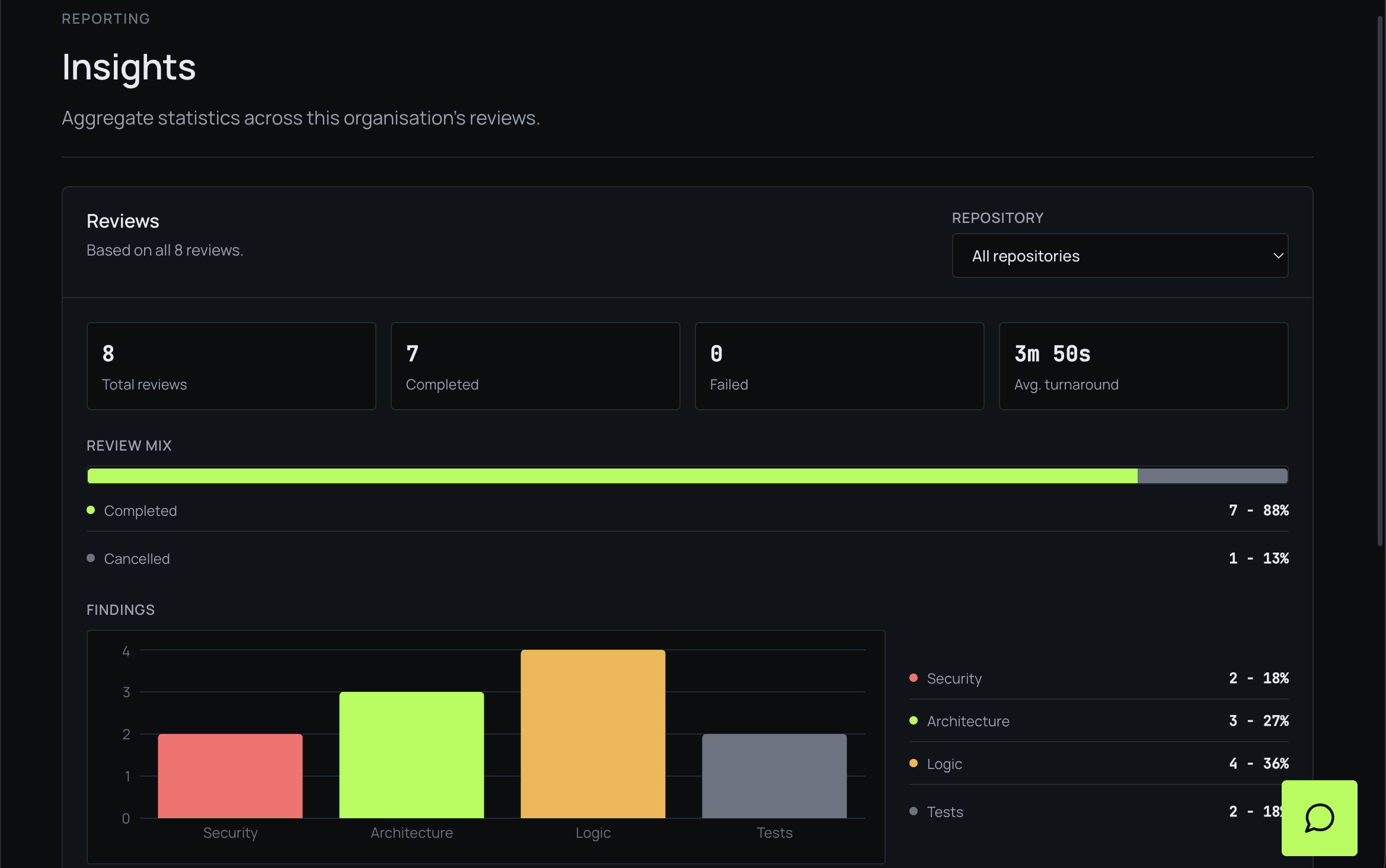
Below that: findings split by category, review activity over the last two weeks, and which repositories are reviewed most. The repository dropdown narrows every figure on the page to one repository.
Invite your team
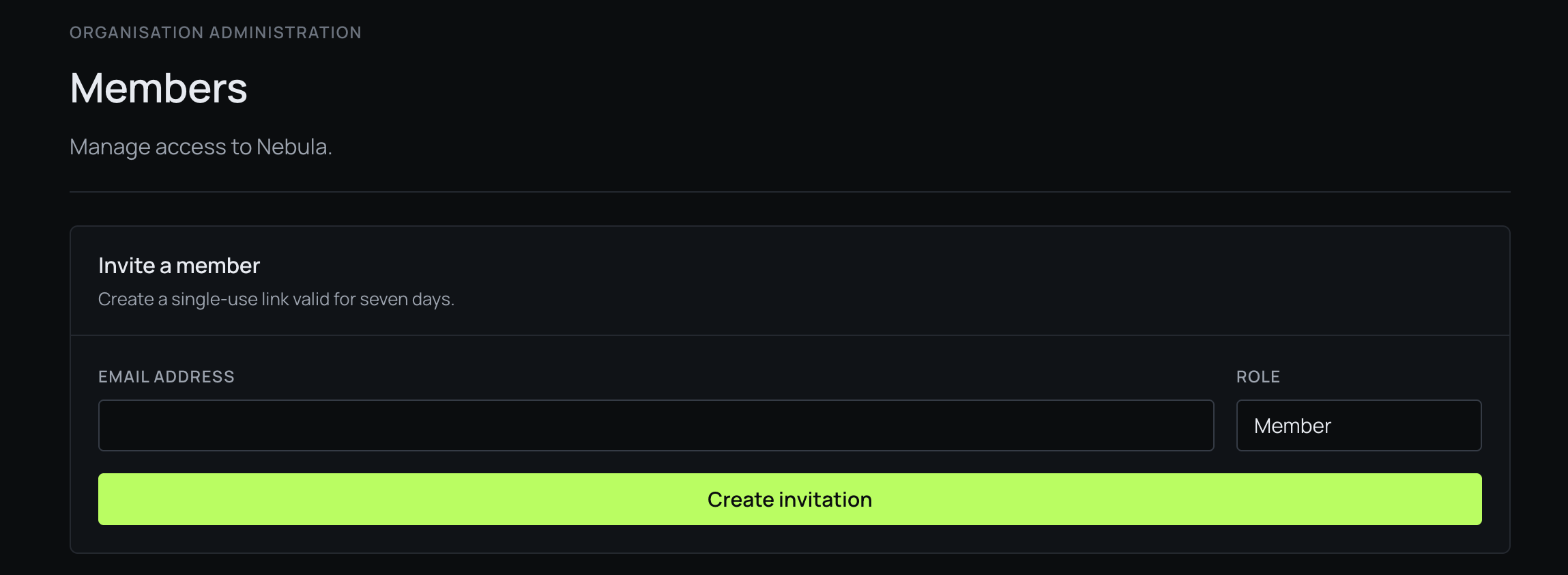
On Members, create an invitation for an email address. That produces a single-use link, valid for seven days.
Roles are owner, admin and member. Any member can start reviews and look at Runs, Knowledge and Insights; Repositories, MCP Servers and Settings are admin-only. Each organisation has exactly one owner, and only the owner can transfer that.
Settings, credits and API keys
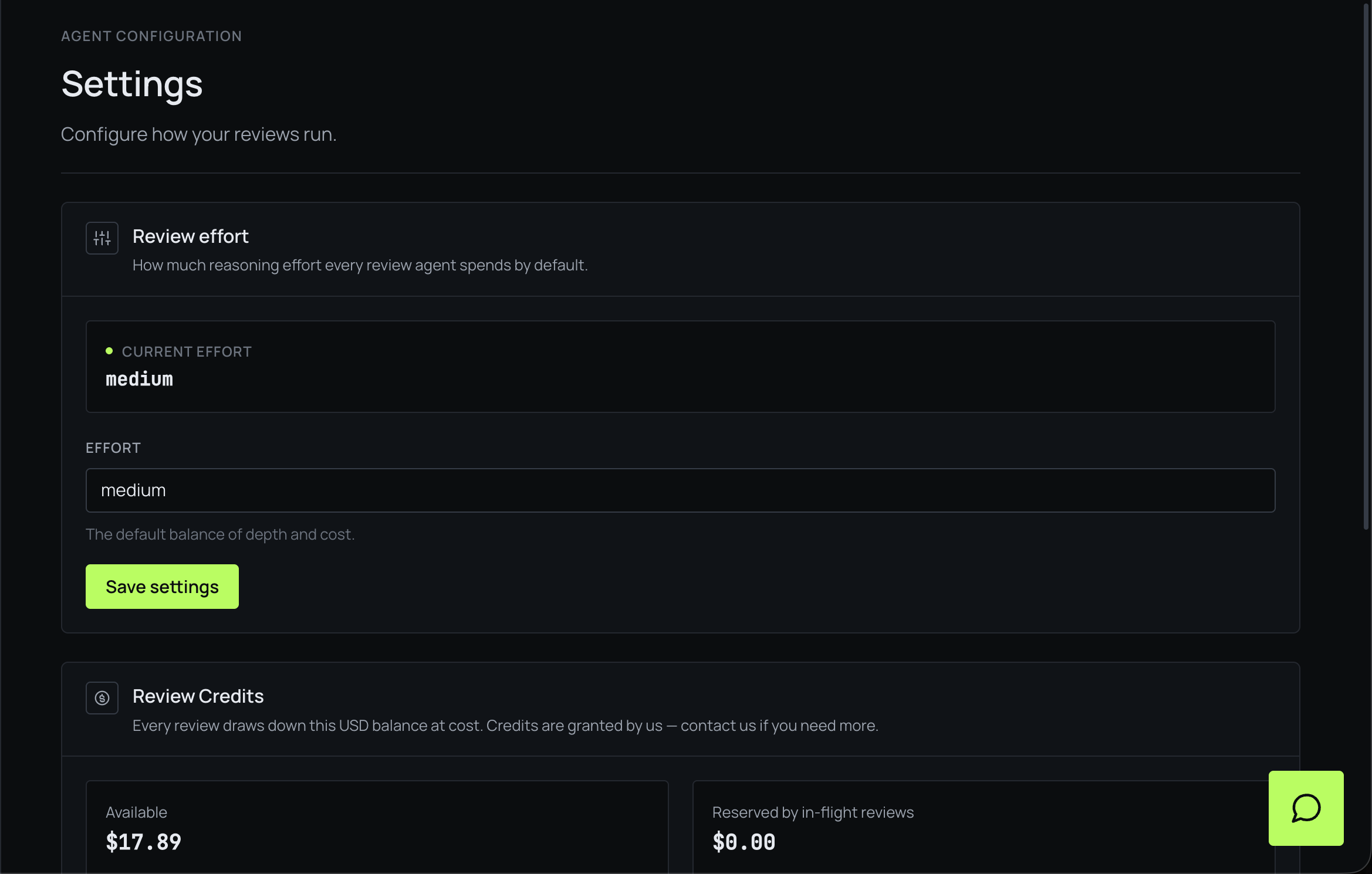
Review effort is how much reasoning each review agent spends. It is one organisation-wide default, not a per-review control.
Review Credits is a USD balance that every review draws down at cost. A review in flight reserves what it might spend until it finishes. Credits are granted by us, so contact us if you need more.
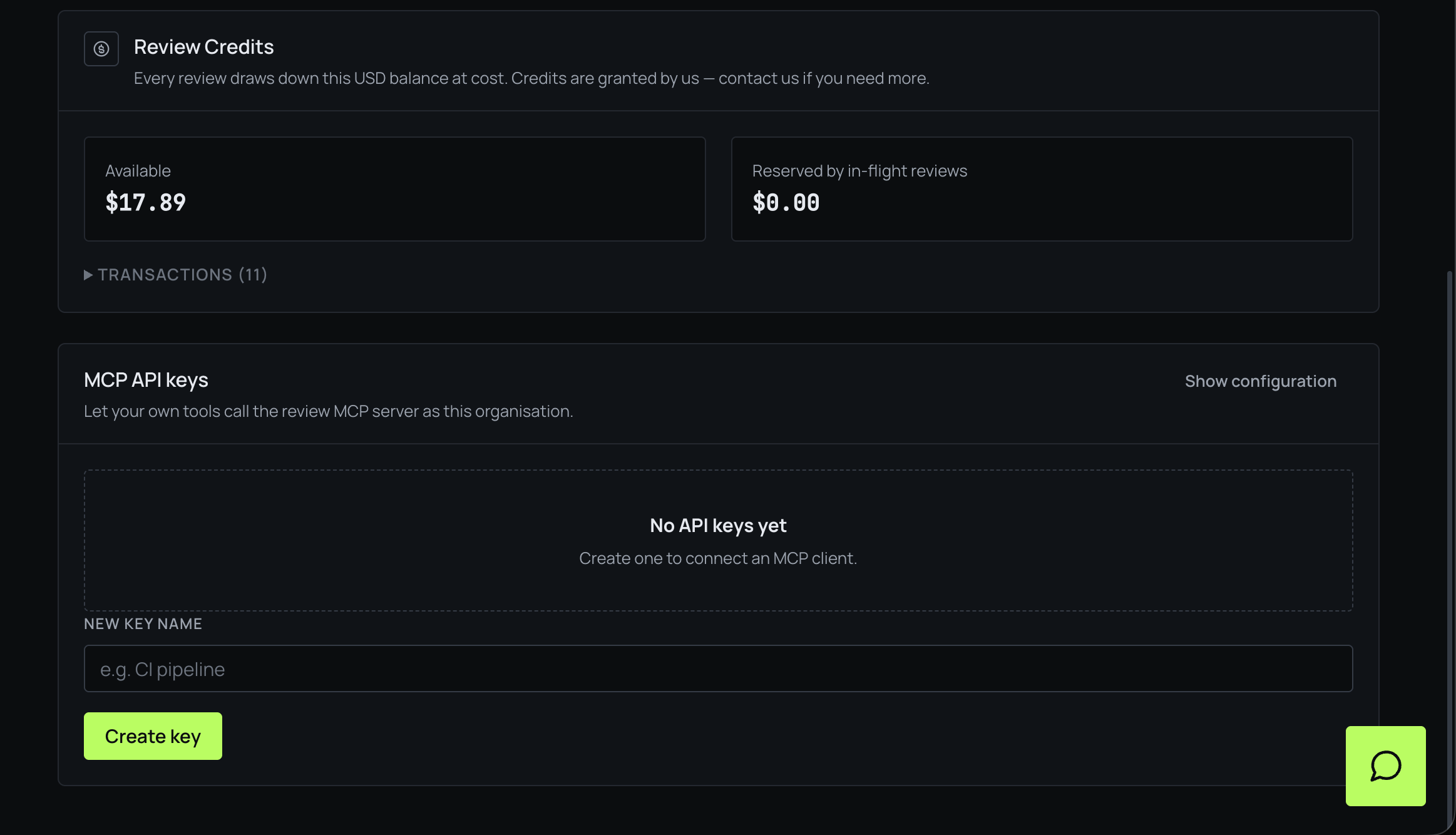
MCP API keys let your own tools call the review server as your organisation, so you can start reviews from an editor or a CI pipeline. Press Show configuration for the snippet an MCP client needs.
Call it from your own agent
The MCP API keys card above (Settings) is also how your own tools call Context Goblin, not just how it calls out to yours. Create a key, then drop this into your MCP client's configuration (Claude Code, Claude Desktop, Cursor, …) — Show configuration on that card gives you this exact snippet with your key already filled in:
{
  "mcpServers": {
    "ai-code-review": {
      "type": "http",
      "url": "https://api.contextgoblin.com/mcp",
      "headers": { "Authorization": "Bearer <YOUR_API_KEY>" }
    }
  }
}
Two tools are exposed:
-
review_repository(repo_url, pr)submits a full review and blocks until it finishes, returning the same formatted output a dashboard or GitHub review gets.repo_urlis a GitHub URL orowner/repo, andpris required — only pull requests are reviewed, never a whole repository. -
get_review_context(repo_url, pr)returns just the context document — diff, blast radius, cross-repo relations — for an agent that will review the diff itself instead of asking Context Goblin to.
Both require the repository to already be connected and enabled for your organisation — see Connect your repositories.